
Table of Contents
Photoshop costs $22.99 a month. That is about $276 a year, every year, for software most people use to crop photos, build social graphics and fix exposure. So the short answer first: yes, in 2026 you can cancel Photoshop and still get professional work done for free. One tool on this list makes that easy. A few make it possible with some patience. And one famous new name, the AI-built clone all over social media, is not ready yet, whatever the hype says.
Here are 7 free Adobe alternatives that actually work, compared on price, file support and the limits nobody puts in their marketing. If you mainly need a Photoshop replacement, start with Affinity. If you need something in the next five minutes, start with Photopea. If you shoot RAW photos and pay for Lightroom, skip to Darktable.
How we checked: every price, version number and feature claim in this article was verified against the developer’s official pages on October 21, 2026. Then we went further than most roundups bother to go. We installed GIMP 3.2.6, Krita 6.0.4, Darktable 4.6.1 and PhotoCraft 0.12 and ran the same two Photoshop-authored test files through each of them, inspecting layer by layer what survived the trip (the full results are in “Our PSD test” below). Photopea runs only in a browser, so its PSD verdict draws on independent hands-on tests of the same round trip. Two tools cannot run on our Linux test bench, Affinity (Windows and Mac) and Paint.NET (Windows only), so those two sections are research-verified against official documentation and independent hands-on reviews. We would rather say that plainly than pretend otherwise. It is the same standard we used when we compared free AI humanizer tools: check the actual numbers, run the actual files, and report what we found, including the catches.
The quick picker
| Tool | Best for | Price | Platforms |
|---|---|---|---|
| Affinity | A real Photoshop replacement | Free (was $70 per app) | Windows, Mac |
| Photopea | Editing right now, no install | Free with ads, Premium $5/mo | Any browser |
| GIMP | Deep control, zero telemetry | Free, open source | Windows, Mac, Linux |
| Krita | Digital painting and illustration | Free, open source | Windows, Mac, Linux, Android |
| Paint.NET | Fast, simple edits on Windows | Free | Windows only |
| Darktable | RAW photo workflow (Lightroom) | Free, open source | Windows, Mac, Linux |
| PhotoCraft | Watching the future, not using it yet | Free, open source | Windows, Mac, Linux, web |
1. Affinity: the one you can actually switch to
Affinity is the headline story of this list. For years it was the respected paid option, a one-time purchase (about $70 per app) that professionals bought to escape the subscription. Then Canva, which owns Affinity, did something nobody predicted: it merged the old Photo, Designer and Publisher apps into a single Affinity app and made it free. Not a trial. Not a stripped lite version. The core product, free.
What you get is a genuinely professional editor. Layers, masks, adjustment layers, RAW development, non-destructive editing, vector tools and page layout live in one app with one file format. Files move between the photo, vector and layout workspaces without export and re-import dances. For anyone whose Adobe bill exists mostly because of Photoshop, this is the closest thing to a like-for-like swap that has ever been free.
The catches are real but small. You sign in with a free Canva account to download and run it. The core app is free forever, but the AI features (generative fill, background removal and the rest) sit behind a Canva Pro subscription, so the free version is a traditional editor, not an AI toy box. If your workflow depends on generative fill, pair it with one of the tools from our roundup of the best AI image generators in 2026 and edit the results in Affinity. One more timing note: today the unified Affinity app runs on Windows and Mac only. An iPad app is promised for November 2026, so iPad editors need to wait a little longer. And while Affinity opens PSD files well, a studio that exchanges layered PSDs with Photoshop users every day should test its own files before cancelling anything.
Who should skip it: teams locked into Adobe’s shared libraries and review links, and anyone whose clients demand native PSD hand-offs with zero conversion risk.
2. Photopea: Photoshop in a browser tab
Photopea does one thing better than everything else here: it starts instantly. Open the site and you are looking at an interface that any Photoshop user will read like a native language. Layers, masks, layer styles, smart objects, adjustment layers, channels and paths are all there. It opens and saves PSD as its main format, and it also handles XCF, Sketch, XD, AI, PDF and dozens more, including camera RAW files.
The detail that surprises people: Photopea runs entirely on your device. Your files never upload to a server, which is why it opens large PSDs faster than most people expect from a web app. For quick client fixes on a borrowed laptop, or for opening a PSD on a machine with nothing installed, nothing else comes close.
The free tier carries ads, and Premium removes them for $5 a month. That is the honest business model, and it is worth stating plainly because $5 a month is still $17.99 less than Photoshop. The limits are the limits of any browser app: very large files and long sessions lean on your machine’s memory, and there is no offline desktop workflow or plug-in ecosystem.
Who should skip it: print professionals who need deep CMYK control all day, and anyone who regularly works on files measured in gigabytes.
3. GIMP: the deep toolbox with rough edges
GIMP is the oldest name on this list and still the deepest free editor most people will ever open. The current stable release is version 3.2.6 (September 2026), the product of a ground-up modernization that fixed the complaints people had repeated for a decade. It is free, open source, and runs on Windows, Mac and Linux.
Depth is the selling point. Layer groups, masks, full color management, high bit depth editing, and a scripting engine (Python, Scheme and more) that can automate batch work in ways casual editors never attempt. A large library of community plug-ins fills most gaps, and because it is open source there is no account, no telemetry and no subscription waiting in a future update.
The honest downsides have not vanished. The interface still asks more of a beginner than Photoshop does, some common tasks take an extra step or two, and CMYK support remains a workaround rather than a native strength. One more warning, from our own PSD test later in this article: GIMP opens layered Photoshop files but quietly empties their shape, fill and adjustment layers, so anyone receiving layered PSDs from clients should keep Photopea or Affinity within reach. People switching from Photoshop should expect a learning week, not a learning hour. If you create content for a living and your editing is mostly photos and graphics for the web, that week buys you a tool you will never pay for again.
Who should skip it: anyone who needs a gentle learning curve, and print shops that live in CMYK.
4. Krita: painters should start here
Krita is not really a Photoshop clone, and that is its strength. It is a free and open source painting program built by artists, with a brush engine that many illustrators describe as better than Photoshop’s for actual drawing. It ships with a deep brush library, stabilizers, drawing assistants, layer management and full animation tools, and it is maintained in the open under the GPL. Current releases are version 6.0.4 and the 5.3.4 maintenance line (September 2026).
For digital painting, comics and concept art, Krita is the first download, full stop. It handles PSD files well enough for painters moving work between apps, and it runs on Windows, Mac, Linux and Android, which makes it the only serious option on this list for drawing on an Android tablet.
What it is not: a photo editor. Retouching tools exist, but batch photo work, RAW development and text-heavy design layouts are outside its purpose. Treat it as the free replacement for the painting half of Photoshop, not the whole application.
Who should skip it: photographers and social media designers. Your tools are Affinity, Photopea and Darktable.
5. Paint.NET: the light one for Windows
Paint.NET began as a student project meant to replace Microsoft Paint, and it grew into the easiest free editor on this list. It is free to download from its official site (the current version is 5.1.12), and a paid version on the Microsoft Store exists for people who want automatic updates and to support development. The app itself is the same either way.
What you get: layers, unlimited undo, a sensible set of effects and adjustment tools, and an interface a complete beginner can learn in an afternoon. For resizing, cropping, quick corrections, simple compositions and web graphics, it is faster to reach for than any heavyweight editor. A friendly community maintains plug-ins that extend it further than you would expect.
The limits are firm. Paint.NET is Windows only. There are no adjustment layers in the Photoshop sense, text handling is basic, and it will not open the complex layered PSDs that Photopea and Affinity shrug off. It is a scalpel, not a workshop.
Who should skip it: Mac and Linux users, obviously, and anyone whose work involves layered files from other people.
6. Darktable: the Lightroom replacement for RAW shooters
Every other tool on this list answers Photoshop. Darktable answers Lightroom, and for photographers it may be the most valuable entry here. It is a free, open source RAW workflow application: a library for organizing shoots and a darkroom for developing them, with non-destructive edits all the way through the pipeline. Your original files are never modified.
The feature set is aimed at people who shoot hundreds of RAW frames and care about color. Professional color management, GPU-accelerated processing, tethered shooting, and a deep set of development modules cover the work Lightroom users actually do daily. It runs on Windows, Mac and Linux and costs nothing, forever, with no catalog lock-in games.
The trade-offs are patience and polish. The interface is denser than Lightroom’s, some modules have names only a color scientist could love, and there is no Adobe cloud sync story. Photographers who develop a few dozen frames a week will adapt and save $9.99 or more a month. High-volume wedding shooters on deadline should test it on a real job before switching.
Who should skip it: anyone who does not shoot RAW. Darktable will feel like a cockpit when all you needed was a bicycle.
One to watch: PhotoCraft and the ArtCraft clones
This is the section most articles get wrong, in both directions. In late September 2026 a project called ArtCraft appeared: a family of open-source clones of the big creative apps, including PhotoCraft for Photoshop, FilmCraft for Premiere Pro, LightCraft for Lightroom and VectorCraft for Illustrator. The remarkable part is how they were built. The projects were written largely by AI coding agents, with a solo developer directing them. PhotoCraft’s public roadmap even measures its remaining work in “Opus 5.5 agent wall-clock hours.” The code is real, the project is open source, and its GitHub repository passed 70,000 stars in under three weeks.
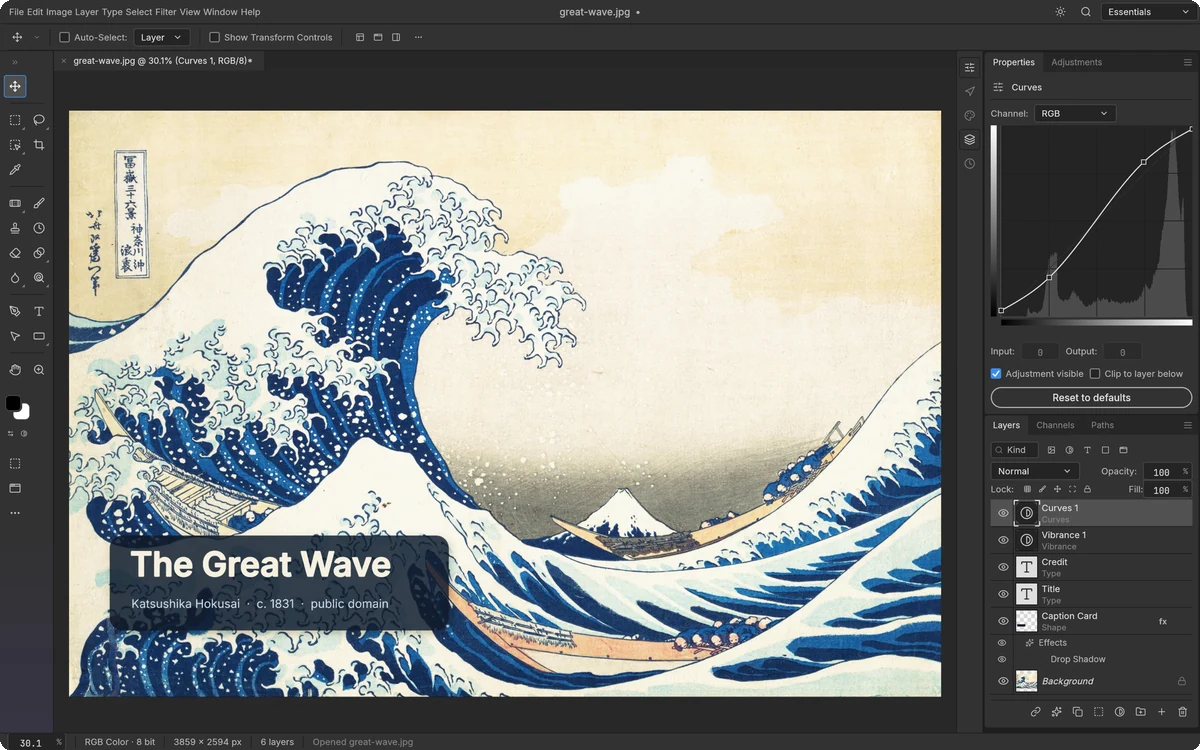
So can you switch to it? No. And you do not have to take our word for that, because the PhotoCraft team says it themselves, in numbers, on their own roadmap page. They rate the app at roughly 45% “ready for real work.” Their AI features sit at 10% (there is no generative fill). Plug-in support is at 15%. Only 3 of their 25 performance budgets are met, and the open issue count was 953 the last time the roadmap was updated. Core workflows do function: the app has 67 tools, layers, masks, adjustment layers and layer styles, and when the team re-saves layered PSD test files, 307 of 309 keep their rendering. But the same roadmap warns that PSD files written by PhotoCraft are not yet reliably accepted back by Photoshop. That single sentence is the difference between a demo and a daily tool.
None of this makes PhotoCraft a scam or a joke. It runs natively on Windows, Mac and Linux, works offline, and improves in public at a pace the industry has never seen. Download it, try your own files in it, and watch it. Just do not build a client workflow on an alpha, and do not believe any headline that calls it a Photoshop killer in October 2026. The most impressive code demo of the year is not yet a tool you can switch to.
Who should skip it: everyone doing paid work today. Revisit it in six months.
Our PSD test: two files that break polite claims
Every tool on this list claims it “supports PSD”. In October 2026 we put that claim to the test ourselves, with two small Photoshop-authored files: the first stacks a live text layer over shape and fill layers; the second carries 16 adjustment layers, from Brightness/Contrast and Curves up to Gradient Map. We opened both files in each tool we could install, saved them back out, and then inspected the results layer by layer with an independent parser. “It opened” and “it survived” turned out to be very different claims.
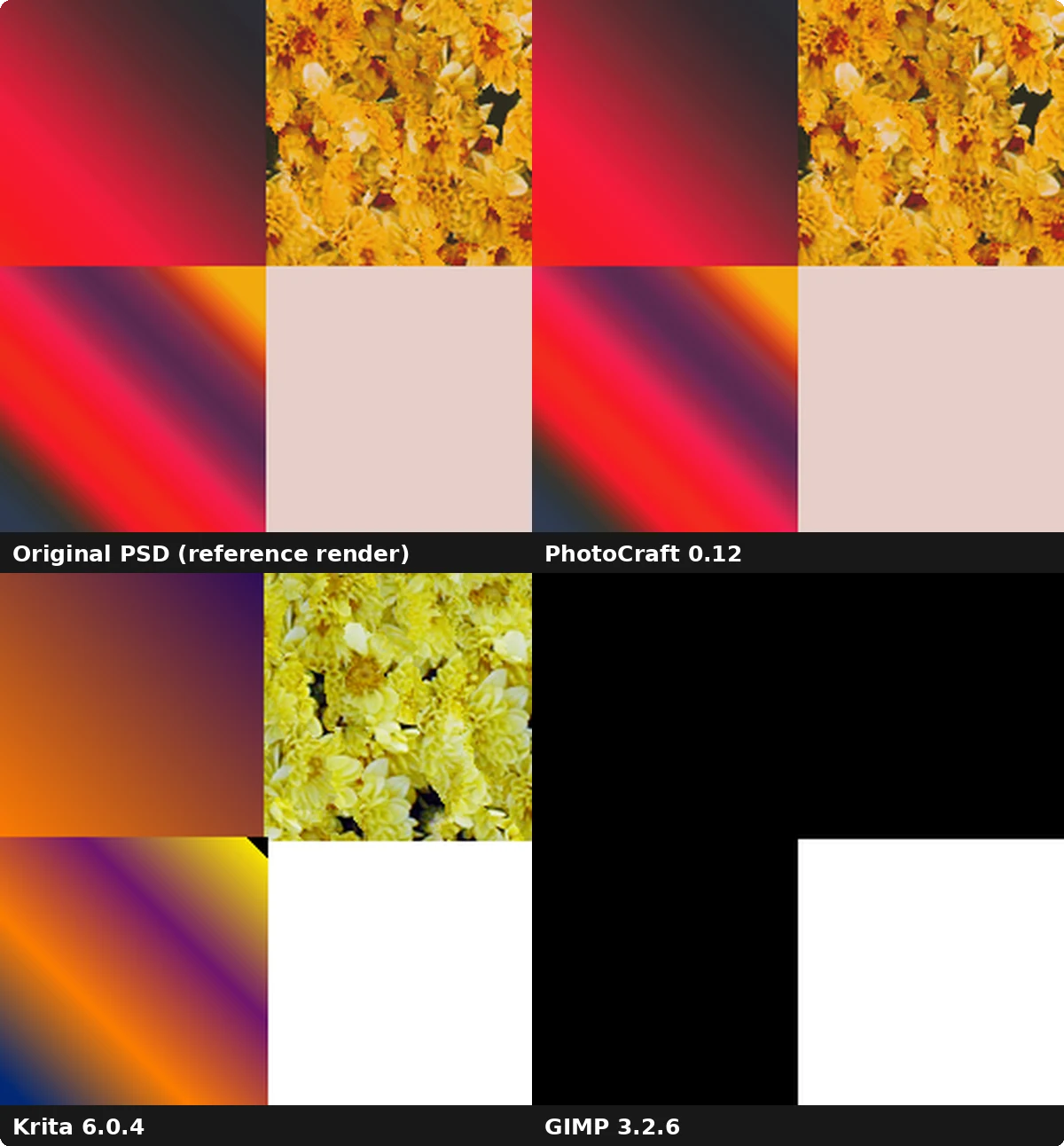
PhotoCraft was the surprise. The alpha opened both files completely: every layer read correctly, the text stayed live text, and all 16 adjustment layers kept their settings. Its saved files preserved the whole structure, text included. Two honest catches: an adjustment layer of the Color Lookup type lost its effect (the layer is kept, the look is not), and text in a font your machine does not have renders in a fallback. Judged only on PSD fidelity, this “45% ready” project behaved like a finished tool. Its readiness problem lives everywhere around that core, in performance, plug-ins and polish.
GIMP kept the names and lost the contents. All 26 layers across both files imported with the right names in the right order, which looks reassuring in the Layers panel. Underneath, the shape and fill layers arrived empty, all 16 adjustment layers arrived as empty pixel layers, and the text layer arrived rasterized, readable but no longer editable as text. A PSD built from plain photo layers fares much better in GIMP, and our pixel background came through exactly. A modern layered file, though, loses most of what its layers do, silently.
Krita sat in between. The text layer stayed editable text, and most fill layers survived, although a pattern fill was flattened into pixels. Photoshop adjustment layers were neither applied nor preserved: Krita exported them as empty layers with the right names, and its rendering of the adjustments file was visibly wrong, with colors the original never had. For a painter moving their own work, that trade may be fine. For exchanging layered files, it is not.
Darktable refused the file outright. Its importer answered “can’t open file”, which is not a bug: Darktable is a RAW developer, and layered PSDs are simply not its input. Feed it camera files and it is excellent; feed it a PSD and you need a different tool first.
Photopea is where the polite claim turns out to be true. It is the one tool here that runs only in a browser, so its results are drawn from the independent hands-on tests that ran the same kind of round trip, including a controlled open, edit, save and compare test published in October 2026. Those tests agree with each other: layered PSDs open with their structure, text, adjustment layers and layer styles intact; text and adjustment layers survive the save back to PSD as editable elements rather than pictures of elements; and no tester reported Photoshop refusing a file Photopea had saved. Its limits are browser limits, not format limits: no autosave, fonts substituted unless you load them yourself, and memory as a hard ceiling, with slowdowns reported from around 120-200 MB files and crashes on the heaviest layered ones. If a layered PSD has to survive the trip, Photopea is the free tool the evidence trusts most.
The lesson is not that free tools are bad at PSD. It is that “supports PSD” means something different in every app, and the only way to know what it means for your files is to open your most layered PSD in the tool before you cancel anything. Which, to be fair, is exactly what the Affinity section advised.
The cost math
Adobe’s pricing is the reason this article exists, so let us put the numbers side by side.
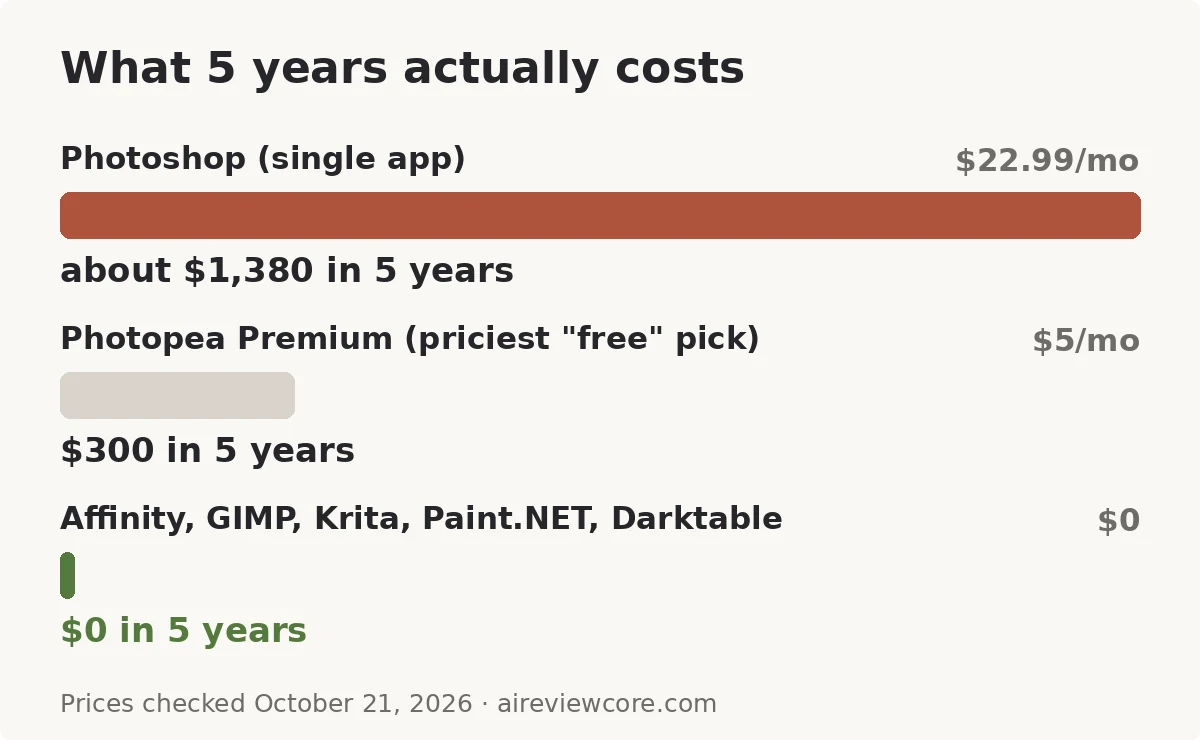
- Photoshop on its own: $22.99 a month, about $276 a year, about $1,380 over five years.
- Photopea Premium, the most expensive “free” option here: $5 a month, $60 a year.
- Affinity, GIMP, Krita, Paint.NET, Darktable and PhotoCraft: $0.
- Nobody is saying Photoshop is bad software. It is the reference standard for a reason, and the next section is honest about who should keep paying. But for the large group of people paying $22.99 a month to crop, resize, retouch lightly and export for the web, the five-year number is the argument. That money buys a decent camera lens, a year of hosting, or roughly twenty-three years of Photopea Premium.
- One more cost that rarely gets mentioned: exit cost. Files made in the open tools stay readable, and the PSD support in Affinity and Photopea means your archive is not held hostage if you ever switch back. Just do not count on GIMP to carry a layered archive for you, for the reasons our test above showed.
Who should NOT switch
Honesty cuts both ways. Keep paying Adobe if any of these describe you:
- Your income runs through Adobe’s AI features. If generative fill and Firefly credits save you billable hours every week, no free tool here replaces that yet. PhotoCraft’s AI is at 10%, and Affinity keeps its AI behind Canva Pro.
- You deliver video ads at volume. A photo editor swap will not fix a video pipeline. Look at your whole stack first; our comparison of AI video generators for product ads is a better starting point for that problem.
- You collaborate inside Adobe’s ecosystem. Shared libraries, review links and clients who expect native files on demand are real workflow value, not marketing.
- Your employer or school pays. Free alternatives shine when the bill is yours.
Frequently asked questions
Is there a free alternative to Photoshop that is actually good in 2026?
Is Affinity really free, or is there a catch?
Are the ArtCraft Adobe clones safe to download and use?
Can these free tools open and save PSD files?
What is the best free alternative to Lightroom?
Do I still need to pay Adobe if I only do basic photo editing?
The verdict
Free Adobe alternatives stopped being a compromise this year. Affinity going free turned the best paid alternative into the best free one, and it is the download we recommend first for almost everyone reading this. Photopea covers the moments when you need Photoshop’s face in a browser, GIMP and Krita serve the control seekers and the painters, Paint.NET keeps Windows simple, and Darktable quietly replaces Lightroom for RAW shooters. PhotoCraft is the one to watch rather than use: a glimpse of how software will be built from now on, rated 45% ready by the people building it.
Start with one tool, open your three most common file types in it, and do one real job end to end. If it holds up, that is $276 a year back in your pocket. If it does not, Adobe will happily take you back, and you will at least know exactly what you are paying for.