
Step-by-Step Guide That Actually Works — By Adrian Cole | aireviewcore.com
Table of Contents
Google Added AI to Everything. Here Is How to Get Your Search Back.
If you opened Google recently and found your results buried under an AI-generated summary you did not ask for, you are not alone. Around 50% of Google searches now include AI overviews, affecting over 2 billion monthly users globally. And most of those users want them gone.
The frustrating truth is that how to disable Google AI Mode is not as simple as flipping one switch. Google has not built a single setting that turns AI Mode off across every device and every surface at once. What does exist and what this guide covers is a set of reliable workarounds that, layered together, remove AI Mode from virtually every place a typical user encounters it.
We tested every method below as of May 2026. Some methods work on all devices. Some are platform-specific. We tell you exactly which is which and which ones to prioritize if you only want to spend five minutes on this.
What Is Google AI Mode — And Why Do People Want It Off?
Google AI Mode also referred to as AI Overviews or Search Generative Experience is Google’s system for inserting AI-generated summaries at the top of search results. Instead of showing you a list of links, Google now tries to answer your query directly using Gemini, its AI model, pulling from multiple sources and combining them into a single response.
The feature was introduced gradually starting in 2024 and became default-on for most users by early 2026. There is no official toggle to disable it entirely.
The reasons people want it off are legitimate. The AI summaries occasionally produce incorrect information presented with the same confidence as verified facts. They push organic search results further down the page, making it harder to reach original sources. They add loading time and visual clutter. And for users concerned about privacy, AI Mode involves additional tracking of your search behavior beyond standard Google data collection.
When AI Mode is disabled, Google stops collecting detailed behavior like clicks, scrolls, and hover time. It also stops the hidden preload calls that quietly fetch AI results in the background. For privacy-conscious users, that alone is worth the five minutes of setup.
The 5 Methods to Disable Google AI Mode in 2026
This is the method that works on every browser and every device without installing anything, creating an account, or navigating any settings menu.
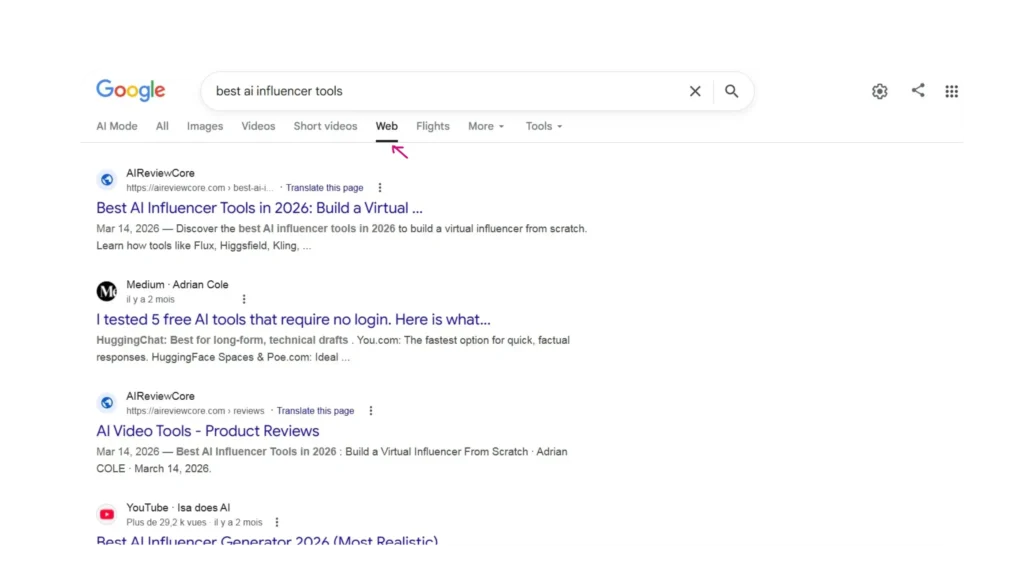
Adding &udm=14 to a Google search URL forces the results page to show traditional blue links with no AI summaries, no featured snippets, and no AI-generated content. This method first appeared in May 2024 and still works reliably in 2026.
How to use it right now:
- Go to Google and search for anything
- In the address bar, add &udm=14 to the end of the URL
- Press Enter
- Your results are now traditional blue links no AI overlay
How to make it permanent in Chrome (Desktop):
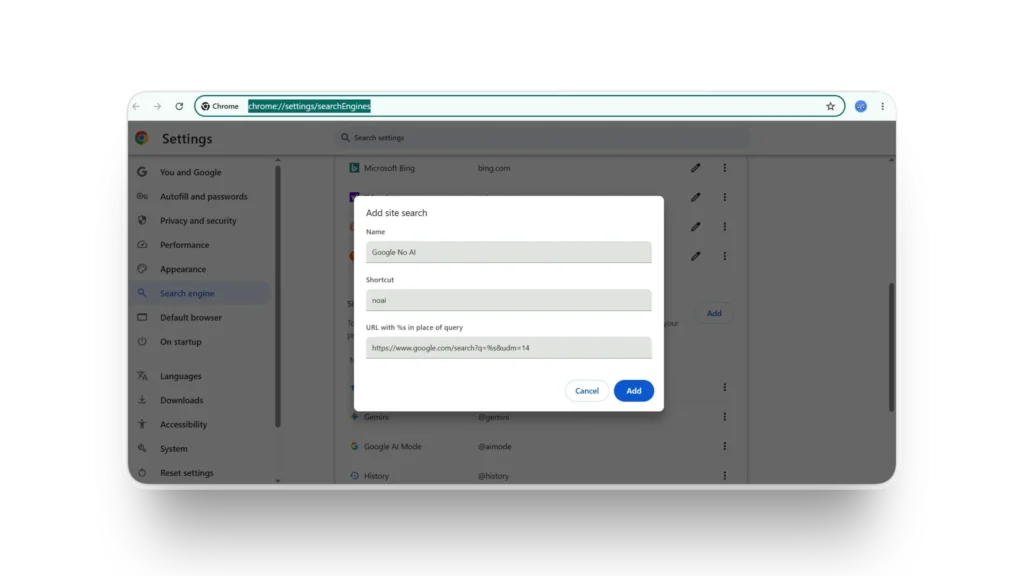
- Open Chrome Settings
- Go to Search engine → Manage search engines
- Click Add next to Other search engines
- Name it “Google No AI”
- Set the URL to:
https://www.google.com/search?q=%s&udm=14 - Click Add, then set it as your default
- Every search from the Chrome address bar now bypasses AI Mode automatically
How to make it permanent on Android:
- Open Chrome on Android
- Go to Settings → Search engine → Add
- Enter the same URL:
https://www.google.com/search?q=%s&udm=14 - Set as default
Expert Workflow: This single setup takes under three minutes and handles the majority of AI Mode exposure for most users. Do this first before trying any other method.
If you use Chrome and see an AI Mode icon appearing inside your address bar every time you start typing a search, that is a separate feature from the AI Overviews in results. There is no toggle for it inside Chrome’s normal settings menu but it can be removed completely by adjusting a specific Google no AI flag in the hidden settings.
How to disable AI Mode from the Chrome address bar:
- Open Chrome on desktop or Android.
- Type chrome://flags in the address bar and press Enter.
- In the search box at the top, search for “ntp realbox dynamic ai mode button”.
- Set the dropdown next to it to Disabled. (This removes the AI button from your search bar).
- Next, search for “ntp composebox” (or NTP compose). Set this to Disabled to turn off AI writing features on the new tab page.
- Search for “omnibox ai mode suppress verbatim match” and ensure it is configured to your preference to stop AI from overriding your exact search queries.
- Click Relaunch at the bottom of the page.
Bonus flag to disable while you are there:
- Optimization Guide On-Device stops Chrome from silently downloading a 4GB AI model to your device in the background.
Expert Workflow: After disabling these specific flags, restart Chrome and confirm the AI icons are gone. If they reappear after a Chrome update, repeat this process Google occasionally resets the ntp realbox dynamic ai mode button with major browser updates.ome update, repeat this process Google occasionally resets flags with major browser updates.
There is no single Android setting that turns off Google AI everywhere, but you can disable nearly all of it through three apps: Google Search, Chrome, and Gmail. Doing all three covers more than 90% of the AI surfaces a typical Android user encounters.
Step 1 — Disable AI Overviews in Google Search:
- Open the Google app on your phone
- Tap your profile picture in the top right
- Tap Search Labs, or go to labs.google.com directly
- Find AI Overviews and toggle it off
- If the toggle is missing, scroll to the bottom and look for Leave Labs experiments
- Restart the Google app
Step 2 — Disable AI Mode in Chrome on Android:
- Open Chrome
- Type chrome://flags in the address bar
- Search for “AI Mode” or “omnibox AI”
- Set to Disabled
- Tap Relaunch
Step 3 — Switch your digital assistant away from Gemini:
- Open Settings on your phone
- Tap Apps → Default apps → Digital assistant app
- Choose None to turn off AI assistant entirely, or select Google Assistant for the classic version
- On Samsung: Settings → Apps → Choose default apps → Device assistance app
Expert Workflow: Complete all three steps in a single session rather than one at a time. Each step removes a different AI surface skipping any one of them leaves a visible gap in the setup.
The easiest approach on iPhone is to use Safari instead of Chrome. Google typically serves fewer AI Overviews to Safari users since it is not a Google-owned browser. If you prefer to stay in Chrome for iOS, the udm=14 custom search engine method from Method 1 works on iPhone exactly as it does on desktop.
Option A — Switch to Safari (Simplest):
- Open Safari
- Go to Settings → Safari → Search Engine
- Select Google
- Safari will now show significantly fewer AI Overviews than Chrome for the same searches
Option B — Stay in Chrome with udm=14:
- Open Chrome on iPhone
- Go to Settings → Search Engine → Other search engines
- Add a new search engine with URL: https://www.google.com/search?q=%s&udm=14
- Set as default
Option C — Use Firefox on iPhone: Firefox on iPhone supports custom search engines the same way Chrome does on desktop.
- Open Firefox on iPhone
- Go to Settings → Search → Add Search Engine
- Name it “Google No AI”
- Set the URL to:
https://www.google.com/search?q=%s&udm=14 - Set as default — every Firefox search now bypasses AI Mode automatically
Option D — Use TenBlueLinks.org: TenBlueLinks.org strips away AI Overviews and gives you plain blue links. Set it as your default search engine in any browser on iPhone by going to Settings → Search engine → Add and entering TenBlueLinks.org.
Expert Workflow: For most iPhone users, Option A switching default searches to Safari is the lowest-friction solution and requires zero technical setup. For Firefox users, Option C delivers the same result with full browser flexibility. Combine either with the udm=14 bookmark for any searches where AI results still appear.
This is the fastest single-use method when you need AI-free results right now without changing any settings.
Simply add -AI to the end of any search query. The minus operator tells Google to exclude results that include the word “AI” and as a side effect, it consistently suppresses AI Overviews from appearing in the results.
How to use it:
- Instead of searching: best productivity apps
- Search: best productivity apps -AI
The AI Overview disappears. Traditional results appear.
The -AI query trick is the fastest method just append -AI to any search query. It works on any mobile browser without configuration.
Limitation: This requires manual addition to every query. It is best used as a quick fix in situations where you have not set up the permanent methods above, or on shared devices where you cannot change default settings.
Expert Workflow: Use Method 5 as your immediate fallback on any device. Use Methods 1 through 4 for the permanent setup on your own devices. Once all four permanent methods are configured, you will rarely need Method 5.
Which Method Should You Use? — The Decision Framework
| Your Situation | Recommended Method |
| Want one setup that works everywhere | Method 1 — udm=14 custom search engine |
| AI button keeps appearing in Chrome address bar | Method 2 — Chrome flags |
| On Android, AI appears across multiple Google apps | Method 3 — Three-app Android setup |
| On iPhone and want the simplest fix | Method 4 — Switch to Safari |
| Need AI-free results right now, no setup | Method 5 — Add -AI to your query |
| Want maximum coverage across all surfaces | Methods 1 + 2 + 3 or 4 combined |
The five-minute complete setup:
- Desktop: Method 1 (set udm=14 as default search) + Method 2 (disable Chrome flags)
- Android: Method 3 (three apps) + Method 1 (Chrome custom search engine)
- iPhone: Method 4 (Safari) + Method 1 (Chrome custom search engine)
Once these are in place, you have removed AI Mode from virtually every surface a typical user encounters in daily search.
What About Google Search Labs?
Google Search Labs is an experimental features area within Google for testing new AI tools. During AI Overview’s initial rollout in 2024, Google Labs offered an opt-out toggle. As of 2026, this option has been removed for most users but it is worth checking if your account still has access.
How to check:
- Go to google.com and sign into your Google account
- Look for the Labs icon (a beaker or flask) in the top right corner of search results
- If you see it, click it and look for an AI Overview toggle
- If the toggle is there, turn it off
- If you do not see the Labs icon at all, Google has removed this option for your account — use Methods 1 through 5 instead
Most users in 2026 will not find this option. It is worth a 30-second check before proceeding to the other methods.
Will These Methods Keep Working?
The honest answer is: probably yes, but not permanently without occasional maintenance.
Methods that work as of early 2026 may behave differently as Google modifies AI Overview triggers, Search Labs experiments graduate to full features, or new browser extensions emerge.
Google has a clear strategic direction: AI Overviews and AI Mode are not going away. They are core to Google’s product roadmap. The workarounds in this guide exploit the gap between Google’s official feature set and its official settings — a gap that narrows over time as Google locks down more controls.
The udm=14 parameter is the most stable of the methods, having worked continuously since May 2024. The Chrome flags method is the most vulnerable to being removed in a future Chrome update. The -AI query trick will likely remain functional as long as Google’s minus operator works — which it has for decades.
Practical recommendation: Set up Methods 1 and 2 now. Bookmark this page. Check back if the methods stop working after a major Google or Chrome update.
Frequently Asked Questions
Is there one button that turns off Google AI Mode completely? No. Google has not built a single setting that turns AI Mode off across every device and every Google product at once. The methods in this guide layer together to cover the full set of AI surfaces most users encounter.
Does disabling AI Mode affect my Google account? The udm=14 method and the Chrome flags method do not interact with your Google account they modify browser behavior only. The Search Labs toggle (if available) is account-level and will apply to any device where you are signed into that Google account.
Will these methods work in Firefox, Edge, and other browsers? Yes. The udm=14 custom search engine method works in any browser that supports custom search engine configuration including Firefox, Edge, and Brave. The Chrome flags method is Chrome-specific.
What is the fastest method for a one-off search right now? Add -AI to the end of your search query. No settings, no accounts, no extensions needed. Works immediately on any device.
Can I use a browser extension instead of these methods? Yes. Extensions like uBlacklist, AI Overview Remover, and several others are available in the Chrome Web Store and Firefox Add-ons. Extensions are effective but add a dependency on the extension developer maintaining updates. The udm=14 method requires no third-party dependency and is more stable long-term.
Does udm=14 work on Firefox and Edge? Yes — udm=14 works on every browser that supports custom search engines, including Firefox, Edge, and Brave. The setup process is identical: go to the browser’s search engine settings, add a new engine with the URL https://www.google.com/search?q=%s&udm=14, and set it as default. Firefox on both desktop and iPhone supports this natively.
Does using these methods affect search quality? Some users report that udm=14 results feel more focused and faster to scan than AI-enhanced results. Others miss certain features like featured snippets that udm=14 also suppresses. If you find the results feel too minimal, Method 5 the -AI query trick suppresses AI Overviews while preserving more of the standard result formatting.
What is the Google no AI flag in Chrome? There is no single “Google no AI flag,” but rather a combination of specific hidden settings you must disable. To remove AI from your browser interface, you need to go to chrome://flags and disable the ntp realbox dynamic ai mode button (which removes the AI icon from the search bar) and the ntp composebox (which removes AI from the new tab page).
The Bottom Line
Disabling Google AI Mode in 2026 takes under ten minutes using the methods in this guide. Start with Method 1 the udm=14 custom search engine then layer the platform-specific steps for your device.
If you are building your AI toolkit beyond search, read our guides on thebest AI productivity tools andClaude AI pricing to see what else is worth your attention in 2026.
Adrian Cole is a professional AI technology reviewer and creative technologist at aireviewcore.com, covering AI tools, search technology, and practical guides for digital professionals.
© 2026 aireviewcore.com — All rights reserved.